
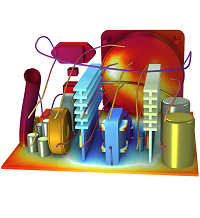
COMSOL Multiphysics 6.4.0.429
COMSOL Multiphysics 6.4.0.429 is an advanced engineering simulation and modeling application for Windows that enables users to create virtual prototypes, solve complex mathematical problems, and analyze interactions between physical processes. It offers tools for geometry creation, material definition, mesh generation, numerical computation, visualization, and multiphysics analysis.
Rate this app
COMSOL Multiphysics 6.4.0.429 Free Download – Latest Version for Windows 11 & 10 (64-bit) is an advanced engineering simulation and scientific modeling software designed for Windows 11 and Windows 10 64-bit systems.
Overview of COMSOL Multiphysics 6.4.0.429
COMSOL Multiphysics is an advanced engineering simulation and numerical modeling application designed to help engineers, scientists, researchers, and students understand how physical systems behave under different conditions. Instead of relying entirely on physical prototypes, users can build virtual models, apply mathematical equations, simulate real-world environments, and analyze the results before manufacturing or testing an actual product.
Version 6.4.0.429 identifies a specific COMSOL Multiphysics release build. The software is known for its multiphysics modeling approach, which makes it possible to study several interacting physical processes within a single simulation. For example, an engineer can investigate how heat affects electrical conductivity, how fluid movement transfers thermal energy, or how mechanical stress changes the behavior of a material.
Unlike basic CAD viewers or simple calculation tools, COMSOL provides a complete environment for creating geometry, defining materials, establishing physical conditions, generating meshes, running numerical solvers, and presenting simulation results. These capabilities make it useful across mechanical engineering, electronics, energy research, chemical engineering, materials science, acoustics, and many other technical disciplines.
The application is particularly valuable when different physical effects influence one another. A conventional calculation may examine temperature alone, but a multiphysics simulation can combine temperature, structural deformation, fluid flow, and other relevant factors in one model when the required physics interfaces and licenses are available.
COMSOL Multiphysics is commercial software. Availability of individual simulation features depends on the installed modules, license type, operating system, and system configuration. Before downloading version 6.4.0.429, users should verify the exact release and supported platform through COMSOL's official website.
Software Information
Software Name: COMSOL Multiphysics
Version: 6.4.0.429
Category: Engineering and Scientific Simulation
License: Commercial / Proprietary
Developer: COMSOL
Supported Platform: Windows, subject to official release requirements
Primary Purpose: Numerical modeling, engineering simulation, and multiphysics analysis
Target Users: Engineers, scientists, researchers, educators, and engineering students
Architecture: Confirm the supported 64-bit platform in the official system requirements
Official Website: COMSOL
What Is COMSOL Multiphysics?
COMSOL Multiphysics is a finite element analysis (FEA) and numerical simulation platform that allows users to describe a physical problem mathematically and solve it computationally. Its central idea is that many real-world engineering problems involve multiple physical effects that cannot be understood accurately by examining each effect in isolation.
Consider the design of an electronic device. Electrical components generate heat during operation, and that heat can affect material properties and device performance. With an appropriate COMSOL model, an engineer can investigate electrical behavior and heat transfer together, examine temperature distribution, and identify regions that may require improved cooling.
Another example is a fluid flowing through a narrow channel. The movement of the fluid may transfer heat to the channel walls, while pressure changes affect flow behavior. COMSOL can represent these interactions using suitable physics interfaces and boundary conditions.
The software provides a graphical modeling environment, but it also supports more advanced workflows involving equations, parameters, variables, and scripting or automation tools where available. This flexibility helps beginners build guided models while allowing experienced researchers to develop detailed simulation workflows.
The quality of a simulation depends on more than the software itself. Correct geometry, reliable material properties, realistic boundary conditions, suitable mesh resolution, and appropriate solver settings are essential for obtaining meaningful results.
Key Features of COMSOL Multiphysics 6.4.0.429
1. Multiphysics Modeling
The defining capability of COMSOL is its support for combining different physical processes in one model. Users can couple compatible physics interfaces to investigate how one phenomenon influences another.
For example, thermal expansion can be connected with structural mechanics, while electrical heating can be linked to heat transfer. These relationships are useful in product development, research, and engineering optimization.
The exact combinations available depend on the selected interfaces, installed modules, and license.
2. Finite Element Analysis
COMSOL supports finite element methods for solving many engineering and scientific problems. These methods divide a model into smaller elements, allowing complex equations to be approximated across the geometry.
Finite element analysis is widely used to study stress, deformation, temperature, electromagnetic fields, and other quantities. COMSOL helps users configure the model, apply the relevant equations, and evaluate the numerical solution.
The accuracy of the results depends on the mathematical model, mesh quality, and solver configuration.
3. Geometry Creation and Import
A simulation begins with a representation of the object or environment being studied. COMSOL includes tools for constructing geometries and preparing them for numerical analysis.
Depending on the workflow and installed products, users can create simple shapes, define dimensions, combine geometric objects, and import compatible external geometry files.
This flexibility is helpful when studying a component with a complicated shape or an assembly that would be time-consuming to recreate manually.
4. Material Properties
Material characteristics play an important role in engineering simulations. Thermal conductivity, density, elasticity, electrical conductivity, and other properties can affect how a system behaves.
COMSOL provides material-definition tools that let users assign available materials or specify appropriate properties for a model. Engineers can also define custom material parameters when reliable data is available.
For dependable results, material values should match the actual operating conditions as closely as possible.
5. Heat Transfer Simulation
Heat transfer modeling helps users understand how thermal energy moves through solids, fluids, and other modeled environments.
Common applications include evaluating cooling systems, analyzing temperature distributions, studying insulation, and investigating heat generated by electrical components.
Depending on the model and available interfaces, users can examine conduction, convection, radiation, or combinations of these processes.
6. Fluid Flow Analysis
Fluid-flow simulation can help researchers investigate velocity, pressure, and flow patterns in pipes, channels, vessels, and other geometries.
Engineers may use such models to study ventilation, cooling channels, chemical processing equipment, or fluid transport systems.
More specialized fluid-flow capabilities may require the relevant additional module, so users should confirm licensing before planning a project.
7. Structural Mechanics
Structural simulation allows engineers to evaluate how components respond to loads, constraints, and other physical conditions.
Typical investigations include deformation, stress distribution, vibration, and mechanical behavior under different loading scenarios.
These analyses can help identify possible weaknesses early in the design process. However, simulation results should be validated against appropriate engineering standards, analytical calculations, or experimental data when safety is important.
8. Electromagnetic Simulation
Electromagnetic modeling is useful for studying electric and magnetic fields and their interactions with materials and devices.
Potential applications include electrical components, sensors, antennas, motors, and electromagnetic heating systems. The available analyses depend on the installed physics interfaces and modules.
Users can inspect field distributions and other calculated quantities to better understand a design's performance.
9. Mesh Generation and Refinement
The mesh divides a model into elements that the numerical solver can process. COMSOL provides mesh-generation tools for preparing geometries for simulation.
Users can select appropriate mesh settings and refine regions where the solution changes rapidly or where greater detail is needed.
A finer mesh can improve the representation of certain physical effects, but it also increases memory use and computational time. Mesh refinement studies are useful for determining whether important results remain stable as the mesh changes.
10. Numerical Solvers
COMSOL includes numerical solvers for supported mathematical and physical problems. Depending on the formulation, users may work with stationary, time-dependent, or other types of analyses.
Solver settings can influence convergence, runtime, and memory consumption. Complex models may require experimentation with scaling, tolerances, initialization, or other numerical settings.
Understanding the problem's physics is therefore as important as knowing how to operate the software.
11. Results Visualization
Simulation results are easier to understand when they are presented visually. COMSOL supports graphical representations such as surface plots, contours, slices, and other appropriate result displays.
Users can investigate how variables change across a geometry, compare different solutions, and produce figures for technical reports or presentations.
Clear visualizations also help identify unexpected behavior that may require further investigation.
12. Parametric Studies
Engineering designs often need to be evaluated under different operating conditions. Parameter-based modeling allows users to vary selected inputs and compare the resulting solutions.
For example, an engineer might investigate how changing a material thickness, inlet temperature, or applied voltage affects performance.
Parametric studies can reduce the effort involved in comparing alternative designs, although the available sweep and optimization capabilities depend on the specific software configuration.
13. Application Development and Automation
COMSOL supports workflows that extend beyond a single simulation. Depending on the installed products and license, users can develop interactive simulation applications or automate parts of their modeling process.
Such workflows can help research teams standardize calculations, make selected models easier for colleagues to operate, and reduce repetitive setup tasks.
Advanced automation features may require additional products or programming knowledge.
14. Engineering Documentation
A simulation project often needs to be shared with colleagues, clients, or reviewers. COMSOL provides tools for organizing model definitions and presenting results.
Users can document assumptions, parameters, boundary conditions, solver settings, and calculated outputs to make their work easier to understand and reproduce.
Good documentation is particularly important when simulations support research publications, design decisions, or formal engineering reviews.
System Requirements
COMSOL Multiphysics 6.4 supports several operating systems, but the exact requirements depend on the platform, installed products, model size, and solver workload. The following details are based on COMSOL's official Version 6.4 requirements.
Component | Requirement or recommendation |
|---|---|
Operating system | Windows 11 or Windows 10, 64-bit |
Processor | Intel or AMD 64-bit CPU supporting SSE4 |
Minimum RAM | 4 GB |
Recommended RAM | 16 GB or more for many practical workloads; larger models may need substantially more |
Installation storage | Approximately 2–25 GB, depending on selected products and options |
Internet connection | Required for installation |
Graphics | OpenGL 2.1 or later for hardware rendering |
Graphics memory | 2 GB or more recommended for full-quality rendering |
License | Valid commercial license or authorized trial |
GPU acceleration | Compatible NVIDIA GPU and driver required for supported GPU solvers |
Important: The 4 GB RAM figure is an official minimum, not a recommendation for demanding engineering simulations. Complex 3D models and fine meshes can require much more memory. Windows 7 and Windows 8 are not listed as supported operating systems for COMSOL 6.4.
Installation Guide
Follow these steps to install COMSOL Multiphysics 6.4.0.429 on a compatible Windows computer. You need an authorized installer and a valid license or eligible trial.
Step 1: Check Your Computer
Before downloading the software, confirm that your computer runs a supported 64-bit version of Windows and has sufficient disk space and memory.
For larger engineering projects, a modern multicore processor and additional RAM can make a noticeable difference in responsiveness and solve time.
Step 2: Visit the Official Download Page
Open the official COMSOL Multiphysics download page.
Sign in to your COMSOL Access account. According to COMSOL, downloading the software requires an eligible license linked to the account or a software trial provided through its sales process.
Step 3: Select Version 6.4
Choose COMSOL 6.4 and check that the download corresponds to build 6.4.0.429.
If you already have an earlier 6.4 installation, check the official update instructions to determine whether you need a full installation or an update package. Do not assume that every download is a standalone installer.
Step 4: Download the Installer
Download the appropriate Windows installation files from the official account portal. Allow the download to finish before starting setup.
Avoid unofficial installers that claim to provide free commercial activation or modified license files. They can create security, reliability, and licensing problems.
Step 5: Start the Setup Program
Locate the downloaded installation package and follow the official installation instructions supplied with it. If Windows requests administrator permission, verify that the installer comes from COMSOL before allowing it to proceed.
Choose the installation directory and the products or components you are authorized to install.
Step 6: Configure the License
Follow the installer prompts to configure the license method associated with your organization, institution, or individual license.
Depending on the license arrangement, this may involve a local license file or a network license server. Contact your license administrator if you do not know which configuration to use.
Step 7: Complete the Installation
Wait for the installer to finish copying files and configuring the selected components. Do not interrupt the process or delete installation files while setup is running.
Restart the computer if the installer or your system requests it.
Step 8: Launch COMSOL Multiphysics
Open COMSOL Multiphysics from the Windows Start menu. If prompted, complete the licensing or sign-in steps required by your installation.
Create a new model or open a sample model to confirm that the application starts correctly.
Step 9: Verify the Version
Open the application's About dialog and confirm that the installed build is 6.4.0.429. COMSOL also documents this version-check procedure in its update instructions.
Step 10: Run a Test Simulation
Start with a simple example, such as a basic heat-transfer model or another example included with your installation. Generate the mesh, run the solver, and inspect the results.
A small test is a practical way to check that the application, license, and selected simulation tools are working before beginning a large project.
Pros and Cons
Advantages
Combines multiple physical processes in one modeling environment.
Supports a wide range of engineering and scientific applications.
Includes tools for geometry, meshing, numerical solvers, and result visualization.
Allows users to investigate designs before building physical prototypes.
Supports parameter studies and repeatable simulation workflows.
Offers documentation and example models for learning and reference.
Disadvantages
Commercial licensing can be expensive for individuals and small teams.
Some specialized physics capabilities require additional modules.
Large or detailed simulations can demand substantial memory and processing power.
New users may need time to understand numerical methods and model setup.
Incorrect material data or boundary conditions can produce misleading results.
Advanced simulations may require troubleshooting, validation, and specialist knowledge.
Who Should Use COMSOL Multiphysics?
COMSOL Multiphysics is best suited to people who need more than basic drafting or spreadsheet calculations.
Mechanical engineers can investigate stress, deformation, vibration, and thermal effects.
Electrical engineers can model electromagnetic fields and selected electrical-thermal interactions.
Chemical engineers can investigate supported transport, reaction, and fluid-flow problems.
Researchers and scientists can use numerical modeling to test hypotheses and study complex systems.
University students and educators can explore engineering concepts through simulation and virtual experiments.
Product development teams can compare design alternatives and evaluate potential performance issues.
The software is less appropriate for users who only need a basic image viewer, simple office calculations, or straightforward 2D drawing. Its greatest value comes from solving defined mathematical and physical problems.
Frequently Asked Questions (FAQ)
1. What is COMSOL Multiphysics 6.4.0.429?
COMSOL Multiphysics 6.4.0.429 is a specific build of engineering simulation software used to model physical systems, solve mathematical problems, and study interactions between different physical processes.
2. Is COMSOL Multiphysics free to download?
The software is commercial and requires an eligible license. COMSOL offers access to downloads through its official account portal for users with qualifying licenses
3. Does COMSOL Multiphysics 6.4 support Windows 11?
Yes. Windows 11 64-bit is listed among the supported operating systems for COMSOL Multiphysics 6.4. Windows 10 64-bit is also listed.
4. How much RAM does COMSOL require?
The official Version 6.4 system requirements list a minimum of 4 GB RAM. For larger models, 16 GB or more is a more practical starting point, although demanding simulations may require considerably more memory.
5. Can beginners use COMSOL Multiphysics?
Yes, beginners can learn the software by following tutorials and starting with small models. However, understanding basic mathematics, physics, and numerical modeling will make it easier to create reliable simulations.
6. What can I simulate with COMSOL?
Depending on your installed modules and license, you can model heat transfer, fluid flow, structural mechanics, electromagnetic fields, acoustics, and coupled multiphysics problems.
7. Does COMSOL require a powerful graphics card?
A compatible graphics setup helps with smooth 3D visualization. A dedicated GPU is not necessarily required for every ordinary simulation, but supported GPU-accelerated solvers have specific NVIDIA hardware and driver requirements.
8. Can COMSOL replace physical testing?
COMSOL can reduce the number of prototypes needed during development, but it cannot automatically replace all physical testing. Critical results should be checked against experimental evidence, analytical methods, or applicable engineering standards.
9. How do I verify build 6.4.0.429?
Launch COMSOL, open the About COMSOL Multiphysics dialog, and check the displayed version number. If you intended to install build 6.4.0.429, confirm that the displayed build matches it.
Editor Review
COMSOL Multiphysics 6.4.0.429 is a capable choice for engineers, researchers, and technical students who need to investigate complex physical systems through numerical simulation. Its greatest strength is the ability to connect compatible physics models and examine how different variables interact within the same virtual environment.
The combination of geometry tools, material definitions, mesh generation, numerical solvers, and result visualization provides a comprehensive workflow for engineering analysis. Rather than evaluating every design through repeated physical prototypes, users can study alternatives computationally and identify areas that deserve closer attention.
However, COMSOL is not a lightweight application intended for every computer user. Its commercial licensing model may be unsuitable for people who only need occasional calculations, and detailed simulations can require substantial computing resources. Users also need to understand the physics behind their models to avoid relying on misleading numerical results.
Previous versions
No previous versions available yet.
Comments
No comments yet. Be the first to comment.
Leave a comment
Your email address will not be published. Required fields are marked *