
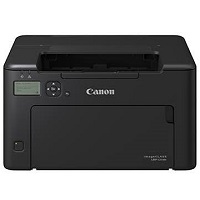
Canon Pixma TR8500 Driver
The Canon PIXMA TR8500 Driver 2027 enables your Windows computer to communicate with the Canon PIXMA TR8500 series multifunction inkjet printer. It supports essential printing and scanning functions, helping you print color documents, photographs, business reports, and everyday paperwork.
Rate this app
Canon PIXMA TR8500 Driver 2027 Free Download – Windows 11, 10, 8.1 & 7 (32-bit/64-bit) is designed for home offices, families, students, and small businesses that need a versatile printer for everyday documents and high-quality color photos. With printing, scanning, copying, and faxing capabilities, this multifunction inkjet printer can handle a variety of tasks without requiring separate devices. Installing the correct Canon PIXMA TR8500 driver helps your computer communicate with the printer and access its supported functions.
In this guide, you will learn how to download and install the Canon PIXMA TR8500 driver in 2027, understand its key features, review system requirements, and troubleshoot common installation problems. You will also find the advantages and disadvantages of the printer software, along with tips for choosing a compatible driver for your Windows computer.
Important: The year 2027 in this guide title does not necessarily indicate a newly released driver. Driver availability depends on Canon's support listings, your region, and your operating system. Always verify compatibility before downloading.
Canon PIXMA TR8500 Driver Overview
Information | Details |
|---|---|
Product name | Canon PIXMA TR8500 series |
Software type | Printer driver and supporting utilities |
Manufacturer | Canon |
Device category | Multifunction inkjet printer |
Main functions | Printing, scanning, copying, faxing |
Print type | Color and monochrome |
Connectivity | USB, Wi-Fi, and supported network features |
Operating systems | Check Canon's official compatibility list |
License | Manufacturer software; terms vary by component |
Release year | 2027 guide; individual driver dates may differ |
Official download source | Canon Support |
The Canon PIXMA TR8500 driver is the software layer that allows Windows and compatible applications to communicate with the printer. Without a suitable driver, your computer may fail to recognize the device correctly or may not offer all the printing options supported by the printer.
Depending on the installation package, you may also receive scanning software, a printer setup utility, or other tools for managing your device.
What Is the Canon PIXMA TR8500 Driver?
A printer driver translates the print instructions generated by your computer into commands the printer can process. When you print a document from Microsoft Word, Excel, a PDF reader, or a web browser, the driver helps convert that document into a format suitable for printing.
For the Canon PIXMA TR8500 series, the appropriate software can provide access to settings such as paper size, print quality, page orientation, color options, and duplex printing where supported.
The complete software package may contain several components:
Printer driver: Enables printing from compatible computer applications.
Scanner driver: Allows supported programs to communicate with the scanner.
Setup utility: Helps configure the printer and establish a USB or wireless connection.
Scanning software: Provides options for scanning documents and photographs.
Maintenance utilities: May provide access to supported printer-status and maintenance functions.
You do not necessarily need every component. If your primary purpose is printing, the printer driver may be enough. If you plan to scan photos or documents to your computer, check whether the compatible scanner driver and scanning utility are included or available separately.
Key Features of Canon PIXMA TR8500 Driver
1. High-Quality Color and Black-and-White Printing
The Canon PIXMA TR8500 series is an inkjet printer intended for both everyday documents and color printing. With the correct driver, you can select supported print-quality settings for different types of work.
For example, standard settings may be suitable for ordinary documents, while higher-quality settings can be useful for photographs, presentations, and graphics. Selecting the appropriate mode helps balance print quality, ink consumption, and printing time.
2. Wireless Printing
Wireless connectivity makes it possible to use the printer without connecting it directly to every computer through a USB cable. After configuring the printer on a compatible Wi-Fi network, you can install the appropriate software and print from computers connected to that network.
This is convenient for households and small offices where multiple users share one printer. The computer and printer must have a suitable network connection, and any required security or network settings must be configured correctly.
3. USB Connectivity
USB is a practical option when the printer is positioned close to a desktop or laptop. A direct connection can simplify installation because it does not depend on a wireless network.
For the best results, follow the installation utility's instructions and connect the USB cable when prompted. Connecting the cable too early can sometimes interfere with the recommended setup procedure.
4. Scanning Documents and Photographs
The TR8500 series includes scanning functionality, allowing you to digitize paper documents, letters, photographs, and other materials. A compatible scanner driver and application may be necessary to access this function from your computer.
Depending on the installed software, you may be able to select scan resolution, color mode, document size, and output format. These options can help you prepare files for emailing, archiving, printing, or sharing.
5. Convenient Copying
The printer's copying function lets you duplicate documents without opening a computer application for every job. This is useful for everyday paperwork, forms, school assignments, and office documents.
The printer's control panel provides access to supported copying functions. Available settings may vary according to the document, paper, and device configuration.
6. Fax Support
The Canon PIXMA TR8500 series includes fax functionality. This can be useful in offices or other environments that still exchange documents through traditional fax services.
Fax setup may require a telephone connection and appropriate configuration. Installing the Windows printer driver alone does not automatically configure the telephone line or all fax functions.
7. Automatic Duplex Printing
Automatic duplex printing allows supported documents to be printed on both sides of the paper. This can reduce paper consumption and make multipage reports easier to manage.
The compatible driver may provide options for double-sided printing, binding direction, and page layout. Always confirm that the selected paper and print settings are suitable for duplex operation.
8. Photo and Document Printing Options
The driver helps you choose settings for different printing tasks. Depending on the software and paper being used, these may include:
Paper size and orientation.
Color or grayscale printing.
Print quality and media type.
Page range and number of copies.
Borderless photo printing where supported.
Multiple pages per sheet.
Duplex printing where supported.
Selecting the correct paper type is particularly important when printing photographs. Using settings that match the paper can help improve the appearance of the final result.
9. Printer Status and Maintenance
Compatible Canon utilities may provide information about printer status, ink levels, and maintenance requirements. The available features depend on the driver package and operating system.
These tools can help you identify low ink, respond to warnings, and determine when routine maintenance may be needed. They cannot resolve every physical problem, such as damaged cartridges or blocked printheads.
10. Support for Everyday Office Applications
Once installation is complete, you can generally print from compatible applications that use the Windows printing system. Common examples include word processors, spreadsheets, PDF readers, image editors, and web browsers.
The driver works in the background, allowing you to choose the Canon printer from an application's print menu and adjust the available settings before sending the job.
System Requirements for Canon PIXMA TR8500 Driver
Before downloading the driver, make sure your computer has a compatible operating system and sufficient storage. Canon's published TR8500-series MP Driver documentation lists Windows 11, Windows 10, Windows 8.1, and Windows 7 SP1 or later for the listed package. The precise supported model and software may differ by region.
Requirement | Details |
|---|---|
Operating system | Windows 11, Windows 10, Windows 8.1, Windows 7 SP1 or later, where listed |
System architecture | 32-bit or 64-bit, depending on the selected package |
Processor | Compatible with the installed Windows version |
RAM | Sufficient memory to run Windows and the setup utility |
Storage | Free disk space for the driver and additional software |
Display | Compatible Windows display |
Connectivity | USB or compatible wireless/network connection |
Permissions | Administrator privileges may be required |
Internet connection | Recommended for downloading software and completing online setup |
Canon's TR8500-series manual lists 3 GB of hard-disk space for its bundled software installation and an XGA display resolution of 1024 × 768. These are published requirements for the documented software environment; newer operating systems or packages may have different requirements.
Is Windows 7, 8.1, 10, or 11 Supported?
Windows 11: Listed for Canon's compatible TR8500-series MP Driver package.
Windows 10: Listed for both 32-bit and 64-bit versions.
Windows 8.1: Listed for 32-bit and 64-bit versions.
Windows 7: Listed for Windows 7 SP1 or later in 32-bit and 64-bit versions.
Windows 8: Check the specific Canon package, as Windows 8 and Windows 8.1 are not interchangeable compatibility labels.
The listed driver package may have a different model designation in some countries. For example, Canon's Australia support page lists the TR8500-series driver under the PIXMA TR8560 support area, while other regional listings identify the PIXMA TR8570. Confirm your exact printer model and regional support page before installing.
How to Check Your Windows Version
Press
Windows + R.Type
winverand press Enter.Review your Windows edition and version.
Open Settings → System → About to check your system type.
Select the matching operating system and architecture on Canon's support website.
Installation Guide for Canon PIXMA TR8500 Driver
Method 1: Install the Driver on Windows
After downloading the compatible driver, use the following procedure.
Open the Downloads folder.
Locate the downloaded Canon
.exefile.Double-click the file to extract its contents and start installation.
Approve the Windows permission prompt if required.
Read and follow the setup instructions.
Choose your preferred connection method when prompted.
Connect the printer by USB or configure the wireless connection.
Allow the installer to detect and configure the device.
Wait for the installation to finish.
Restart your computer if requested.
Open a document and print a test page.
The exact screens may vary depending on the driver version and Windows edition. If the installer asks you to connect the printer, follow its instructions rather than connecting it prematurely.
Method 2: Install Using a USB Cable
A USB connection is useful when the printer is near your computer or when you prefer a direct connection.
Turn on the printer.
Download the compatible MP Driver package.
Start the installation utility.
Select USB as the connection method, if prompted.
Connect the cable when the installer requests it.
Allow Windows to complete device setup.
Print a test page to confirm that the driver works.
If the printer is not detected, try another USB port or cable and restart the installation. If the driver installation was interrupted while waiting for a connection, Canon recommends running the installation again.
Method 3: Install Using Wi-Fi
Wireless installation allows compatible computers to print without a direct USB connection.
Connect the printer to your Wi-Fi network using its setup options.
Make sure your computer is connected to a suitable network.
Download and launch the Canon installation package.
Choose the wireless or network connection option.
Follow the instructions to locate the printer.
Select the correct device from the available list.
Complete the installation.
Print a test page.
If the printer is not found, check the Wi-Fi connection, router settings, and any firewall restrictions. You may need to repeat setup if the printer was previously configured for a different network.
Method 4: Install Scanner Software
If your goal is to scan documents and photographs, check that the scanning components are installed.
Download the compatible MP Drivers package from Canon.
Run the installer.
Complete the printer and scanner setup.
Open IJ Scan Utility if it is installed.
Place a document on the scanner glass or use the supported document feeder.
Choose an appropriate scan mode.
Start the scan and save the result.
If scanning fails after changing the connection from network to USB, Canon's documentation advises reinstalling the MP Driver and configuring the new connection method.
Pros and Cons of Canon PIXMA TR8500 Driver
Advantages
Complete printing support: Enables compatible Windows applications to communicate with the printer.
Scanning functionality: The compatible MP Driver package can provide printing and scanning support.
Color printing: Suitable for documents, graphics, and photographs.
Flexible connectivity: USB and wireless options support different home and office setups.
Duplex printing: Helps save paper when printing compatible documents.
Useful scanning utility: IJ Scan Utility can simplify scanning tasks when included in the package.
Multiple operating systems: Canon lists Windows 11, Windows 10, Windows 8.1, and Windows 7 SP1 or later for compatible driver packages.
Official technical resources: Canon provides driver downloads, manuals, and setup guidance.
Disadvantages
Compatibility must be checked: The available package depends on the precise model, region, and operating system.
Ink consumption: Frequent color and photo printing can increase running costs.
Wireless setup can be complicated: Network configuration may require additional troubleshooting.
Extra software may be needed: Some functions require compatible utilities in addition to the basic driver.
Older Windows versions: Windows 7 and Windows 8.1 are no longer supported by Microsoft for ordinary security updates.
Installation errors can occur: Interrupted setup, incompatible packages, or connection issues can prevent successful installation.
Driver updates are not necessarily yearly: A guide labelled 2027 does not mean Canon has released a new driver in 2027.
Common Problems and Solutions
1. Canon PIXMA TR8500 Is Not Detected
Check the printer's power, USB cable, and network connection. Make sure you selected the correct model and installed the appropriate driver. If Windows detected the printer before the driver was installed, restart the setup process and follow Canon's instructions.
2. Driver Installation Fails
Verify the Windows version and system architecture, then download the matching Canon package. Close unnecessary programs and run the installer again. Administrator permissions may be required.
3. Printer Is Offline
Check that the printer is switched on and has no error displayed on its control panel. For USB connections, inspect the cable. For wireless connections, verify that the printer and computer are connected to a suitable network.
4. Color Prints Look Incorrect
Check the paper type and print-quality settings. Verify ink levels and follow the printer's maintenance instructions if colors are faded or uneven. A driver reinstall will not correct empty cartridges or physical printhead problems.
5. Scanning Does Not Work
Confirm that the scanner driver and compatible scanning utility are installed. Check the connection method and make sure the correct printer is selected in the scanning application.
6. Borderless Printing or Layout Settings Are Missing
Canon notes that some Windows 10 and Windows 11 standard print-dialog settings may not work as expected with the TR8500-series driver. Open the Canon printer's Printing Preferences window and configure the supported paper size, layout, and borderless-printing options there.
Frequently Asked Questions
Is the Canon PIXMA TR8500 driver free?
Canon provides compatible printer drivers through its official support website without a separate driver-download charge in the usual case. Individual software components remain subject to their own license terms.
Can I install the Canon PIXMA TR8500 driver on Windows 11?
Yes. Canon lists Windows 11 support for its compatible TR8500-series MP Driver package. Confirm that the package matches your exact printer model and Windows installation.
Does the driver support 32-bit and 64-bit Windows?
Canon lists separate 32-bit and 64-bit support for Windows 10, Windows 8.1, and Windows 7 SP1 or later in the documented package. Check the current regional listing before downloading.
Do I need the full driver and software package?
Not necessarily. The MP Drivers package may be sufficient for printing and scanning, while the full software package can include additional setup tools and applications. Choose according to the functions you need.
Can I print wirelessly after installing the driver?
Yes, provided that the printer is correctly configured on a compatible wireless network and your computer can communicate with it. Follow the wireless setup instructions for your model.
Does the 2027 driver title mean a new release?
No. The year in the article title is an SEO label, not confirmation of a new software release. Always check Canon's published version number and release date.
Where should I download the driver?
Use Canon's official support website for your country or region. Confirm the model number and operating system before downloading any installer.
Editor's Review
Installing the correct driver is essential for accessing supported printer functions from Windows. Canon's MP Drivers package is a sensible starting point because its documented functionality includes printing and scanning, while IJ Scan Utility is included in the referenced release.
For the most reliable installation, select the driver for your exact regional model, check the supported Windows version, and follow the setup instructions. If you experience problems with scanning, wireless connectivity, or print layout, consult Canon's documentation before reinstalling the software.
Previous versions
Comments
No comments yet. Be the first to comment.
Leave a comment
Your email address will not be published. Required fields are marked *