
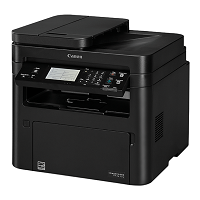
Canon ImageCLASS MF267dw II driver
The Canon imageCLASS MF267dw II Driver 2027 enables your computer to communicate with the Canon multifunction monochrome laser printer for printing, scanning, and copying tasks.
Rate this app
Canon imageCLASS MF267dw II Driver 2027 Free Download – Windows 11, 10, 8 & 7 (32-bit/64-bit) is a monochrome multifunction laser printer designed for home offices, small businesses, and professional work environments. It combines printing, scanning, and copying in one compact device, making it a practical choice for users who need reliable black-and-white document handling. To use its functions correctly on a computer, you need compatible printer drivers and, when required, additional scanning software.
This guide explains how to download, install, and configure the Canon imageCLASS MF267dw II driver in 2027. It also covers the printer's main features, system requirements, installation instructions, advantages, disadvantages, troubleshooting tips, and other important details to help you get started.
Important: Download the driver from Canon's official support website whenever possible. The available software depends on your operating system, region, and printer model. Windows 11 and Windows 10 should be checked first; do not assume that every older Windows version, including Windows 7 or Windows 8, is officially supported.
Canon imageCLASS MF267dw II Driver Overview
Information | Details |
|---|---|
Product name | Canon imageCLASS MF267dw II |
Software type | Printer driver and scanner software |
Manufacturer | Canon |
Device category | Multifunction monochrome laser printer |
Main functions | Printing, scanning, and copying |
Print output | Black and white |
Connectivity | USB and wireless/network connectivity, depending on configuration |
Supported operating systems | Check the official Canon support page for your operating system |
License | Manufacturer-provided software; license terms vary by component |
Release year | 2027 guide; driver release dates may vary |
Official download source | Canon Support |
The Canon imageCLASS MF267dw II driver acts as the communication link between your computer and the printer. It translates print instructions from applications such as Microsoft Word, Excel, web browsers, and PDF readers into commands the printer can understand.
Installing the correct driver can also make available additional settings, such as paper size, print quality, duplex printing, and device-specific options. Scanner software may be required separately to access scanning functions from your computer.
What Is the Canon imageCLASS MF267dw II Driver?
A printer driver is a small software package that allows your operating system to recognize and communicate with a physical printer. Without an appropriate driver, your computer may not detect the device correctly, or some printing features may be unavailable.
The Canon imageCLASS MF267dw II is designed for everyday document production. It is useful for printing invoices, reports, business letters, school assignments, contracts, forms, and other text-heavy documents. Installing the proper software helps Windows identify the printer and use its supported functions.
Depending on your computer and connection method, you may need one or more software components:
Printer driver: Enables your computer to send print jobs to the device.
Scanner driver: Allows compatible applications to communicate with the scanner.
Setup utility: Helps configure the printer and establish a connection.
Network configuration software: May help discover or configure a printer connected to a network.
Firmware updates: May be available separately to address device-related improvements or issues.
Not every component is required for every user. If you only print documents, the printer driver may be sufficient. If you want to scan documents directly to your computer, check whether Canon provides compatible scanning software for your operating system.
Key Features of Canon imageCLASS MF267dw II Driver
The driver and related utilities help you use the printer's available functions through a compatible computer. The exact options depend on the installed driver package, operating system, and connection method.
1. Reliable Black-and-White Printing
The MF267dw II uses laser printing technology to produce sharp text and professional-looking monochrome documents. It is suitable for everyday office work, including reports, receipts, business forms, and lengthy text documents.
With the appropriate driver installed, you can select print quality, paper size, orientation, and other available settings before sending a document to the printer.
2. Automatic Double-Sided Printing
The printer supports automatic duplex printing, allowing compatible documents to be printed on both sides of a sheet. This can reduce paper consumption and make multipage reports easier to organize.
The driver may provide options for long-edge or short-edge binding, depending on the document layout and software configuration.
3. USB and Wireless Connectivity
The MF267dw II supports USB and wireless networking, along with wired Ethernet connectivity. These options let you choose a setup that suits your office.
USB connection: Suitable for a computer located near the printer.
Wi-Fi connection: Convenient for printing from compatible computers on the same network.
Ethernet connection: Useful in offices that prefer a wired network connection.
Canon's documentation lists these interfaces among the device specifications.
4. Scanner Support
The printer includes scanning functionality for digitizing paper documents. A compatible scanner driver and scanning utility may be needed to scan from Windows applications or save documents directly to a computer.
Depending on the installed software, you may be able to adjust scan resolution, choose color or monochrome output, and save files in supported formats.
5. Convenient Copying
The MF267dw II can copy documents without requiring a computer for every copy job. Its control panel provides access to supported copying options, while the driver package helps integrate the printer into a computer-based document workflow.
This is useful for offices that frequently duplicate invoices, identification documents, forms, or other paperwork.
6. Paper and Print Settings
The driver provides access to supported paper-handling options. Depending on the selected driver, these may include:
Paper size and orientation.
Portrait and landscape layouts.
Print quality and resolution settings.
Multiple pages per sheet.
Automatic double-sided printing.
Copies and page ranges.
Paper source selection, where available.
Correctly matching the settings to the paper loaded in the printer helps prevent layout errors and unnecessary reprints.
7. Compatibility With Office Applications
Once the printer is installed, you can generally print from compatible applications that use the operating system's print dialog. These include word processors, spreadsheets, PDF readers, browsers, and business software.
The driver is not a document editor. Instead, it enables supported applications to send print jobs to the physical device.
8. Network Printing for Multiple Users
When connected to a suitable office network, the printer can be shared by compatible computers without requiring each user to connect directly through USB.
For a network installation, make sure the printer and computer can communicate with each other. Firewall rules, network isolation, or a changed printer IP address can interrupt communication. Canon's manual explains that network settings and port configuration can affect driver operation.
System Requirements
Before installing the Canon imageCLASS MF267dw II driver, check that your computer meets the requirements for the specific package you intend to download.
Requirement | Recommendation |
|---|---|
Operating system | A version explicitly listed on Canon's support page |
Processor | Compatible with the selected Windows or other OS version |
Memory (RAM) | Enough to run the operating system and installation utility |
Storage | Free space for the downloaded package, extracted files, and installation |
Connection | USB, Wi-Fi, or Ethernet, depending on your setup |
Permissions | Administrator access may be required |
Internet | Recommended for downloading official drivers and utilities |
Printer status | Powered on and ready, when requested by the installer |
Supported Windows Versions
Canon's official documentation for this model family lists Windows 11, Windows 10, and Windows 8.1 among supported environments for relevant software. Some driver packages have different compatibility lists, and older versions may not support every feature. Check the exact package before downloading.
Windows 11: Check for a driver package specifically compatible with your edition and system architecture.
Windows 10: Select the correct 32-bit or 64-bit package if Canon offers separate versions for your system.
Windows 8.1: Verify the availability of a compatible driver before installing it.
Windows 8 and Windows 7: Do not assume these versions are supported just because another driver for a related Canon printer supports them. Confirm the exact model and operating system on Canon's website.
Windows 7 and Windows 8 are no longer supported by Microsoft for ordinary security updates. If you still use an older operating system, consider upgrading to a supported version where possible.
How to Check Your Windows Version
Press
Windows + Ron your keyboard.Type
winverand press Enter.Check the Windows version displayed.
Open Settings → System → About to check whether your system is 32-bit or 64-bit, where applicable.
Choose the installer that matches your operating system. A driver designed for a different operating system or architecture may fail to install or may not function correctly.
Pros and Cons
Advantages
Multifunction convenience: Printing, copying, and scanning are available in one device.
Professional text output: Monochrome laser technology suits office documents and reports.
Automatic duplex printing: Helps reduce paper consumption.
Flexible connectivity: USB, wireless, and wired network options support different working environments.
Computer-based printing: Compatible applications can print documents through the installed driver.
Useful office settings: Supported driver options help manage paper size, orientation, and print layout.
Official software availability: Canon provides support resources, manuals, and drivers for compatible operating systems.
Disadvantages
Model-specific compatibility: A driver for a similar printer may not be appropriate for the MF267dw II.
Installation can take time: Network configuration and additional scanner software may require extra steps.
Older operating systems: Current software may not support Windows 7 or Windows 8.
Monochrome output: The printer is designed for black-and-white printing rather than color documents.
Network troubleshooting: Firewall settings, network changes, or an incorrect IP address can interrupt printing.
Storage requirements: Full driver packages can be relatively large and may contain several components.
Some features require extra software: Scanning and other computer-based functions may need utilities beyond the basic printer driver.
Common Driver Problems and Solutions
Printer Not Detected
Check that the printer is powered on and that the USB cable or network connection is working. If using Wi-Fi, confirm that the printer is connected to the intended network. Restart the printer and computer, then run the installation utility again.
Driver Installation Fails
Verify that you downloaded a package for the exact MF267dw II model and your operating system. Extract compressed files first, close unnecessary applications, and run the installer with administrator permissions if required.
Printer Shows as Offline
Check the printer's status, paper supply, and any displayed error messages. In Windows, open the printer queue and confirm that the device is not paused or set to use offline mode. For network connections, confirm that the computer can reach the printer.
Printing Quality Is Poor
Check the paper type and print-quality settings. If the output is faded, streaked, or uneven, follow the printer's maintenance instructions and check the toner cartridge. Installing a driver will not fix a physical toner or hardware problem.
Scanning Does Not Work
Make sure the scanner driver and appropriate scanning utility are installed. Test the connection and confirm that the selected device is the MF267dw II. Network scanning may also require appropriate firewall and sharing settings.
1. Is the Canon imageCLASS MF267dw II driver free?
Canon's official driver downloads are generally provided without a separate charge. Some software components may have their own license terms, so read the applicable conditions before installation.
2. Can I install this driver on Windows 11?
Check Canon's support page for the MF267dw II and select Windows 11. Download a package explicitly listed as compatible with your system.
3. Does the printer support Windows 10?
Canon lists Windows 10 for relevant software in this printer family. Check the individual package to confirm that it supports your edition and system architecture.
4. Can I use the printer with Windows 7 or Windows 8?
Compatibility depends on the specific driver release. Do not rely on a driver intended for another model or a different Windows version. Confirm support on Canon's official website before installation.
5. Do I need separate scanner software?
Possibly. Some packages include scanner components, while others require a separate scanner driver or utility. Check the included software list.
6. Can I print wirelessly?
Yes, the MF267dw II supports wireless connectivity. Configure the printer's network connection and install the appropriate driver on your computer.
7. Why does my computer fail to recognize the printer?
Common causes include an incorrect driver, a loose USB cable, a network connection problem, or a firewall restriction. Check the connection and reinstall the appropriate package if necessary.
8. Should I download drivers from third-party websites?
The official Canon support website is the preferred source. Avoid installers that are repackaged, bundled with unrelated software, or difficult to verify.
Previous versions
No previous versions available yet.
Comments
No comments yet. Be the first to comment.
Leave a comment
Your email address will not be published. Required fields are marked *