
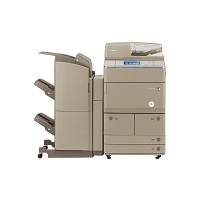
Canon imageRUNNER ADVANCE 6065 Driver
Canon imageRUNNER ADVANCE 6065 multifunction copier for reliable office printing. A compatible driver provides access to supported print settings, including paper size, page orientation, duplex printing, and available finishing options.
Rate this app
Canon imageRUNNER ADVANCE 6065 Driver 2027 Free Download – Windows 11, 10, 8.1 & 7 (32-bit/64-bit) is a high-volume monochrome multifunction photocopier designed for offices, businesses, educational institutions, and professional document-processing environments. It helps users handle everyday printing, copying, and supported scanning tasks while managing large document workloads. To use its printing functions correctly from a Windows computer, you need a compatible printer driver.
The Canon imageRUNNER ADVANCE 6065 Driver 2027 is a search term for users looking for the appropriate driver and installation resources for this machine. The year in this title does not necessarily mean Canon released a new driver in 2027. Always check Canon's official support website for the latest available package for your operating system.
A suitable driver allows Windows applications to communicate with the copier and provides access to supported settings, including paper size, print quality, page orientation, finishing options, and duplex printing. Depending on the selected driver and the copier's configuration, users may also be able to manage advanced features such as stapling, booklet creation, and multiple-page printing.
This guide explains how to find the correct Canon imageRUNNER ADVANCE 6065 driver, check system requirements, install it on Windows, configure a network connection, troubleshoot common problems, and understand the advantages and limitations of the available software.
Canon imageRUNNER ADVANCE 6065 Driver Overview
Product name: Canon imageRUNNER ADVANCE 6065
Software type: Printer driver and related utilities
Device category: Monochrome multifunction copier/printer
Operating systems: Windows versions listed for the selected driver package
Supported Windows versions: Windows 11, Windows 10, Windows 8.1, and Windows 7 may have compatible packages available; verify the official listing
System architecture: 32-bit or 64-bit, depending on the driver
Connection methods: USB or network connection, depending on the device configuration
Main purpose: Enable supported printing functions from a computer
License: Generally provided by Canon for use with compatible devices, subject to the applicable software terms
Official download source: Canon Support
Important: The imageRUNNER ADVANCE 6065 is an office copier, not a typical home inkjet printer. Installation may require network details, administrator permissions, or assistance from the office IT administrator.
What Is the Canon imageRUNNER ADVANCE 6065 Driver?
A printer driver is software that translates print instructions from a computer into a format the printer or copier can understand. Without a suitable driver, Windows may fail to recognize the device correctly or may provide only basic printing functionality.
When you print a document from Microsoft Word, a PDF reader, a web browser, or another application, the operating system sends the print job through the installed driver. The driver then communicates the appropriate instructions to the Canon imageRUNNER ADVANCE 6065.
Installing the correct package can provide access to supported paper sizes, resolution options, paper sources, finishing functions, and other device-specific settings. Available options depend on the driver family, copier configuration, installed accessories, and permissions assigned by the administrator.
Canon may provide several driver families for this model, including UFR II, PCL, and PostScript drivers. These options are not identical, so selecting the correct one is important.
Canon UFR II Driver
The Canon UFR II driver is designed to process print data using Canon's UFR II printing technology. It is a common option for compatible Canon office printers and copiers.
Choose this driver when it is available for your operating system and is recommended for your organization's printing setup. It can provide device-specific print settings and efficient print processing on supported systems.
Canon PCL Driver
PCL drivers are useful in many business environments, especially where applications and existing office workflows rely on Printer Command Language compatibility.
A compatible PCL driver may be appropriate when your IT department recommends it or when your organization uses standardized printer configurations. Confirm that the required PCL version is listed for the exact operating system.
Canon PostScript Driver
A PostScript driver may be useful for workflows involving graphics, publishing applications, or software that relies on PostScript printing.
It is not automatically the best choice for every user. The appropriate option depends on the applications being used, the copier's configuration, and the recommendations of the network administrator.
Tip: Do not install every available driver simply because it appears on the download page. Choose the package that matches your Windows version and the printing environment.
Key Features of the Canon imageRUNNER ADVANCE 6065 Driver
1. Reliable Document Printing
The driver allows supported Windows applications to send print jobs to the imageRUNNER ADVANCE 6065. Once configured correctly, users can print letters, reports, invoices, office forms, and other everyday business documents.
2. Paper Size and Orientation Settings
Depending on the selected driver, users can choose available paper sizes and page orientations. These options help prepare documents for standard office paper, forms, and supported larger-format sheets.
Available choices depend on the copier's installed paper sources and configuration.
3. Print Quality Controls
Compatible drivers can provide options for adjusting print quality and other output settings. The available controls vary between UFR II, PCL, and PostScript packages.
For routine office documents, the recommended default settings are often sufficient. More specialized documents may require adjustments.
4. Duplex Printing
The driver can expose two-sided printing options when the copier and its configuration support them. Duplex printing can reduce paper consumption for suitable reports, manuals, and internal documents.
Check the print dialog before sending a job to confirm that two-sided printing is enabled as intended.
5. Finishing and Output Options
Office copiers may support finishing functions such as sorting, stapling, or booklet creation when the necessary accessories are installed and configured. A compatible driver can make supported options available in the print settings.
These features are not guaranteed on every installation. If an option is missing, check the copier's installed accessories, device configuration, and driver settings.
6. Multiple Copies and Collation
For supported configurations, the driver can send instructions for multiple copies and collated output. This is useful when printing meeting materials, reports, or document sets for different departments.
Whether copies are processed by the computer or by the copier can depend on the selected settings and device capabilities.
7. Network Printing
The imageRUNNER ADVANCE 6065 is designed for business use, and network printing is an important part of many installations. A compatible driver can allow multiple authorized computers to send jobs to the copier over a configured office network.
The computer and copier generally need to be connected to the appropriate network, and the required printer port or print server must be configured correctly.
8. Application Compatibility
A properly installed driver can work with supported Windows applications, including office software, PDF readers, browsers, and business applications.
Actual compatibility depends on the Windows version, driver package, application, and printing configuration.
9. Device-Specific Print Settings
Instead of relying on a generic printer driver, an appropriate Canon driver may provide settings designed for the imageRUNNER ADVANCE 6065.
This can help users select supported paper sources, output methods, and other device functions from the Windows print dialog.
10. Support for Business Workflows
The driver is intended for environments where consistent document output matters. Offices can use it as part of a managed printing setup with shared printers, user permissions, and centrally configured print queues.
Some administrative features require separate management software or network configuration rather than the printer driver alone.
System Requirements
Before downloading the Canon imageRUNNER ADVANCE 6065 driver, confirm that your computer meets the requirements of the specific package.
Supported Operating Systems
Potentially relevant Windows versions include:
Windows 11
Windows 10
Windows 8.1
Windows 7
These versions should not be interpreted as a guarantee that every driver family supports every operating system. Canon's available downloads differ by driver type, operating-system edition, and system architecture. Windows 7 and Windows 8.1 are older operating systems and may have limited or discontinued support.
32-bit and 64-bit Compatibility
Windows drivers are often designed for a particular system architecture. A 64-bit driver usually cannot be installed on a 32-bit Windows installation, and a 32-bit package should not be assumed to support a 64-bit system.
To check your system type:
Open the Windows Settings application or Control Panel.
Select System and open About or System.
Find the system type or system architecture information.
Record whether Windows is 32-bit or 64-bit.
Select a matching driver from Canon's official support page.
The exact menu names differ between Windows versions.
Additional Requirements
Your computer should also have:
Enough free disk space to download and extract the driver.
Administrator access if required for installation.
A working USB or network connection, depending on your setup.
The copier connected to the appropriate power and network sources.
The correct printer model and network information.
Permission to install printers if the computer is managed by an organization.
For network installation, you may need the copier's IP address, hostname, or shared printer name. Ask your IT administrator if you do not have this information.
If one regional page does not display the downloads you need, visit the Canon support website for your country and search for imageRUNNER ADVANCE 6065.
Download Instructions
Open the official Canon support page.
Search for or confirm the exact model name: imageRUNNER ADVANCE 6065.
Select your operating system if the website requests it.
Check whether Windows is 32-bit or 64-bit.
Open the drivers or software section.
Review the available UFR II, PCL, or PostScript packages.
Read the compatibility information and release notes.
Download the recommended package.
Save the file in a location you can easily find, such as the Downloads folder.
If several versions are available, follow your organization's recommended driver standard.
Before downloading, check that the package is intended for the imageRUNNER ADVANCE 6065 or explicitly lists compatibility with your device.
Installation Guide for Windows 11 and Windows 10
The exact installation screens depend on the downloaded package. The following procedure describes a typical manual installation.
Step 1: Download the Correct Driver
Visit Canon's official support page and download the driver that matches your Windows version and system architecture.
If your organization uses a print server, ask whether you should install a local driver or connect to a shared printer.
Step 2: Extract the Files
Some Canon driver downloads are provided as compressed files or self-extracting packages.
If the file is compressed, right-click it and choose the appropriate extraction option. If it is an installer, open it and follow the instructions displayed on the screen.
Step 3: Start the Installer
Locate the extracted folder and look for the setup application or the installation instructions supplied with the package.
Right-click the installer and select Run as administrator if administrative permission is required and you are authorized to install software.
Step 4: Accept the Software Terms
Read the applicable license terms and continue only if you agree to them. Follow the setup wizard's instructions.
Step 5: Select the Connection Method
Depending on the driver package, you may be asked to choose between a network printer, USB connection, or another supported installation method.
For an office copier, network installation is common. Select the method that matches the way your device is configured.
Step 6: Select the Printer
The installer may search for available devices or ask you to specify a printer port, IP address, hostname, or print queue.
If the copier does not appear automatically, confirm that your computer is on the correct network. Ask the network administrator for the required details.
Step 7: Complete the Installation
Follow the remaining prompts and allow the installer to finish. Restart the computer if the installer requests it.
Step 8: Print a Test Page
Open Windows printer settings, select the Canon imageRUNNER ADVANCE 6065, and print a test page if the option is available.
Check the output for correct text, orientation, paper size, and other expected settings.
Installation Guide for Windows 8.1 and Windows 7
Older Windows versions may require a driver package specifically designed for the relevant operating system.
Open Canon's official support website.
Search for the imageRUNNER ADVANCE 6065.
Select Windows 8.1 or Windows 7 if it is listed.
Confirm whether the package supports your system architecture.
Download the compatible driver.
Extract the files if necessary.
Run the installer or follow the manual installation instructions.
Choose the correct connection method.
Select the copier or configure the required printer port.
Complete the installation and print a test page.
If Canon no longer provides a compatible package, do not assume that a Windows 10 or Windows 11 driver will work. Contact Canon support or your organization's IT administrator for an appropriate solution.
Windows 7 and Windows 8.1 are no longer supported by Microsoft for normal security updates. Where possible, use a currently supported operating system.
How to Install the Copier as a Network Printer
Network installation is useful when several computers need to use the same copier.
Step 1: Confirm Network Connectivity
Make sure the copier is connected to the office network. Your computer should also be connected to the correct network or have an approved route to the copier.
Step 2: Find the Copier's Network Information
Obtain the copier's IP address or hostname from its control panel, configuration page, or IT administrator. The exact procedure depends on the device's configuration.
Step 3: Add the Printer in Windows
Open Settings, go to Printers & scanners, and select the option to add a printer or scanner.
If Windows does not find the copier, use the available manual-add option. The wording varies between Windows versions.
Step 4: Choose a Port or Shared Printer
Follow the installation prompts to select the correct network printer, port, or shared print queue. Use only network details provided by your organization or verified from the copier.
Step 5: Install the Matching Driver
Select the appropriate Canon driver when prompted. If your company manages drivers centrally, follow the IT department's instructions.
Step 6: Test Printing
Print a test page or a small document. If printing fails, verify the IP address, network connection, print queue, permissions, and driver selection.
Scanner Software and Scanning Setup
The imageRUNNER ADVANCE 6065 can be used in document workflows that include scanning, but installing the printer driver does not automatically guarantee that every scanning feature will work.
Scanning support depends on the copier's configuration, the connection method, the operating system, and the software provided for the device.
Canon may offer separate scanning utilities, such as Color Network ScanGear 2, for supported Windows environments. Check the official support page to confirm whether a scanning component is available for your setup.
For network scanning:
Confirm that the copier's scanning functions are configured.
Check whether the necessary scanning utility or driver is installed.
Verify network connectivity between the computer and copier.
Follow the scanning software's setup instructions.
Test with a small document.
Ask your administrator for assistance if authentication or network settings are required.
Do not download scanner software from an unofficial source when an official Canon package is available.
Pros and Cons
Pros
Supports printing from compatible Windows computers.
Offers device-specific settings through supported Canon driver packages.
Can work in office network environments.
May expose duplex printing and finishing options when supported.
Supports common office document workflows.
Canon's official support pages provide model-specific software resources.
Multiple driver families may be available for different business requirements.
A correctly configured driver can make everyday printing easier to manage.
Cons
The correct driver depends on the Windows version and system architecture.
Not every driver family supports every operating system.
Older Windows versions may have limited driver availability.
Network installation can require administrator assistance.
Advanced finishing features depend on installed hardware and configuration.
Scanning may require separate software and setup.
Installing the wrong driver can result in missing options or failed printing.
A driver download does not guarantee compatibility with every computer or application.
Common Problems and Troubleshooting
1. Windows Cannot Find the Copier
Check that the device is powered on and connected to the correct network. If the copier uses a network address, verify it with your IT administrator.
For USB connections, inspect the cable and try another supported USB port if appropriate.
2. The Driver Installation Fails
Confirm that the package matches your operating system and system architecture. Extract compressed files before running the installer when required.
If installation is blocked by organizational policies, contact your administrator instead of trying to bypass those controls.
3. The Copier Appears Offline
Check the printer queue, network connection, device power, and any displayed error messages. A changed IP address or unavailable print server can also prevent communication.
4. Printing Works but Advanced Options Are Missing
Verify that you installed a compatible Canon driver rather than relying on a generic driver. Check the device configuration and confirm that the desired hardware accessories are installed.
Some options may need to be enabled in the driver's device settings.
5. Documents Print with the Wrong Layout
Open the application's print dialog and confirm paper size, orientation, scaling, tray selection, and duplex settings. If the problem affects multiple applications, review the printer's default preferences.
6. The Scanner Is Not Detected
Check whether scanning is enabled and whether the required scanning utility is installed. Confirm that the software supports your Windows version and connection method.
If scanning is managed by the office network, your administrator may need to configure permissions or destinations.
7. Windows 7 or Windows 8.1 Is Not Listed
Do not select a random package simply because its name looks similar. Check the available operating-system options on Canon's official website and consult Canon support if no compatible package is listed.
Frequently Asked Questions
What is the Canon imageRUNNER ADVANCE 6065 driver?
It is software that allows a compatible computer to send print jobs to the Canon imageRUNNER ADVANCE 6065 and access the features supported by the installed driver.
Is the Canon imageRUNNER ADVANCE 6065 driver available for Windows 11?
Check Canon's official support page for a Windows 11-compatible package. Availability depends on the driver family and the listed operating-system support.
Can I install this driver on Windows 10?
A compatible package may be available for Windows 10. Select your exact model and Windows architecture on Canon's support website before downloading.
Does it support Windows 7 and Windows 8.1?
Some older driver packages may list these systems, but compatibility varies. Check the official download details before installation. Both operating systems are out of Microsoft's standard support lifecycle.
Should I choose UFR II, PCL, or PostScript?
Choose the driver recommended by Canon or your IT administrator. UFR II is a common Canon option, PCL can suit standardized business printing environments, and PostScript may be appropriate for particular graphics or publishing workflows.
Is the driver free?
Canon generally provides its device drivers through official support channels without a separate driver purchase. Review any applicable software terms and avoid third-party installers that request unnecessary payments.
Does the printer driver enable scanning?
Not necessarily. Printing and scanning can use different software components. Check Canon's support page for scanning utilities compatible with your copier and operating system.
Why is the copier not detected after installation?
The computer may be using the wrong port, network address, connection method, or driver. Check connectivity and printer settings, and contact your IT administrator if the copier is managed centrally.
Is this a new driver released in 2027?
The year in this article title is an SEO label, not confirmation of a 2027 driver release. Use Canon's official support page to verify the actual package name, release date, and compatibility.
Can I use a generic Windows driver?
A generic driver may offer basic printing in some situations, but it may not expose all device-specific functions. A compatible Canon driver is preferable when one is available for your system.
Final Verdict
The Canon imageRUNNER ADVANCE 6065 driver is an essential component for connecting a compatible Windows computer to this office multifunction copier. Installing the correct package can enable dependable printing and access to supported device-specific settings.
For the safest result, use Canon's official support resources, confirm your Windows version and system architecture, and choose the driver that matches your printing environment. If you are installing the copier on a company network, ask your IT administrator to confirm the correct driver and printer configuration before proceeding.
Previous versions
No previous versions available yet.
Comments
No comments yet. Be the first to comment.
Leave a comment
Your email address will not be published. Required fields are marked *