
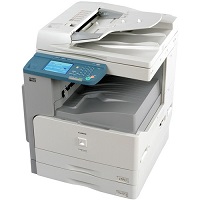
Canon imageCLASS MF7470 Driver
The Canon imageCLASS MF7470 Driver is essential software that enables compatible Windows computers to communicate with the Canon imageCLASS MF7470 multifunction laser printer. It helps users print documents and access supported device functions, including scanning and PC faxing when the necessary software is installed.
Rate this app
The Canon imageCLASS MF7470 Driver helps a compatible computer communicate with the Canon imageCLASS MF7470 multifunction laser printer. Installing the correct driver allows Windows to send print jobs to the device and, where supported by the installed software and connection, access additional functions such as scanning and PC faxing.
The Canon imageCLASS MF7470 is an older monochrome laser multifunction machine designed for offices and workgroups that need printing, copying, scanning, and faxing capabilities. Canon lists print speeds of up to 25 pages per minute on A4 paper, print resolution up to 1200 × 1200 dpi, USB 2.0 Hi-Speed connectivity, and a built-in Ethernet interface.
If you are searching for the Canon MF7470 driver in 2027, it is important to distinguish the article's publication year from the driver's actual release date. Canon identifies this model as a retired product and states that driver and content updates are no longer being provided. Therefore, a new 2027 driver release should not be assumed.
This guide explains the printer's features, driver requirements, installation process, advantages, disadvantages, and troubleshooting steps to help you set up the device as reliably as possible.
Canon imageCLASS MF7470 Driver Overview
Information | Details |
|---|---|
Device name | Canon imageCLASS MF7470 |
Driver category | Printer and multifunction device driver |
Manufacturer | Canon |
Printer technology | Monochrome laser |
Main functions | Printing, copying, scanning, and faxing |
Maximum print speed | Up to 25 pages per minute (A4) |
Maximum listed print resolution | Up to 1200 × 1200 dpi |
Connectivity | USB 2.0 Hi-Speed and 10/100 Ethernet |
Compatible operating systems | Depends on the available legacy driver and operating system |
License | Manufacturer-provided driver software, subject to its licence terms |
Official support |
The model specifications above are based on Canon's published support information and technical documentation.
What Is the Canon imageCLASS MF7470 Driver?
A printer driver is software that translates printing instructions from your operating system and applications into commands the printer can understand. Without a compatible driver, the computer may fail to recognise the printer correctly or may provide only limited printing functionality.
For the Canon imageCLASS MF7470, the appropriate driver package depends on your computer's operating system, its architecture, and the connection method being used.
For example, a computer running an older Windows release may require a legacy Canon driver. A newer computer may need a compatible driver package, an available built-in Windows driver, or a supported network-printing configuration. Compatibility should be checked rather than assumed.
The driver is especially important in offices where the MF7470 is shared among several computers. A correct setup can help users send documents to the machine through USB or a supported Ethernet network.
Remember that installing a printer driver does not repair mechanical problems, replace toner, or fix a faulty network connection. It addresses the software side of communication between the computer and the printer.
Key Features of the Canon imageCLASS MF7470
1. Monochrome Laser Printing
The MF7470 uses monochrome laser technology to produce black-and-white documents. This makes it suitable for business letters, invoices, office reports, forms, and other text-heavy materials.
Laser printing is useful when an office needs consistent text output and regular document production. Since this model does not provide colour laser printing, it is best suited to workflows that primarily require black-and-white output.
2. Print Speed for Office Workloads
Canon specifies a print speed of up to 25 pages per minute on A4 paper.
Actual performance can vary according to document complexity, paper size, printer settings, connection type, and the time needed for the first page.
Installing the correct driver helps the computer submit print jobs using supported settings. It does not increase the printer's physical maximum speed.
3. High-Resolution Text Output
The manufacturer's specifications list print resolution up to 1200 × 1200 dpi.
This resolution is useful for producing clear text, business forms, and detailed black-and-white documents. The final appearance also depends on the quality of the source document, paper, toner cartridge, and condition of the printer.
For everyday office printing, the default driver settings are generally a reasonable starting point. Higher-quality settings may be useful for documents containing fine lines or small text.
4. USB Connectivity
The printer includes a USB 2.0 Hi-Speed interface.
A USB connection is convenient when one computer needs direct access to the machine. It also makes troubleshooting relatively straightforward because the setup does not depend on network addressing or shared-printer permissions.
Use a suitable USB cable and connect the printer according to the installation instructions for the selected driver package. If the computer does not detect the device, try another compatible port or cable before assuming that the driver is faulty.
5. Ethernet Network Printing
The MF7470 also includes a 10/100 Ethernet interface. Canon's documentation describes network functions that include printing, PC faxing, and scanning.
Ethernet connectivity can be useful in a shared office environment where several authorised computers need access to the same machine.
Network setup may require the printer and computers to be connected to the appropriate network, along with suitable IP settings and compatible software. Availability of scanning and fax functions can depend on the operating system and installed driver components.
6. Multifunction Office Capability
The MF7470 combines several document-handling functions in one device:
Printing: Produces black-and-white documents from compatible computer applications.
Copying: Creates copies directly through the machine's controls.
Scanning: Captures documents through supported scanning workflows.
Faxing: Supports fax functions and compatible PC fax workflows.
Some functions operate independently of the computer, while others depend on compatible software. Installing the print driver alone may not activate every multifunction feature.
7. Support for Large Documents
Canon lists platen scanning up to 11.75 × 17 inches and automatic document feeder support for originals up to 11 × 17 inches. The specifications also describe document-handling capabilities for a range of paper sizes.
These capabilities can be useful for offices that handle reports, larger forms, and business paperwork. For reliable results, select the correct paper size and media settings in the driver and ensure the physical paper is loaded properly.
8. Driver-Based Print Settings
Depending on the compatible driver package, users may be able to adjust settings such as paper size, orientation, print quality, and page layout.
These options help prepare documents for different tasks. For example, a business letter may require standard portrait printing, while a wide table may need landscape orientation.
The available options can differ between driver versions and Windows releases, so the exact menu names may not match those shown in older manuals.
9. Support for Common Office Paper Sizes
The MF7470 supports multiple paper sizes, including Letter, Legal, A4, and larger formats, subject to the paper source and configuration. This flexibility is useful for offices that print a mixture of correspondence, reports, forms, and larger documents.
Selecting the correct paper size in both the application and printer driver helps prevent clipped text, unexpected scaling, and incorrectly positioned content.
System Requirements
Because the Canon imageCLASS MF7470 is a discontinued model, the most important requirement is finding a driver that actually supports your operating system. Canon's original specifications list older Windows releases, including Windows XP, Windows Vista, and Windows 7, along with other legacy platforms. Current Windows compatibility is not guaranteed.
The following table provides general preparation guidelines, not official minimum hardware specifications for a particular driver release.
Component | Recommended requirement |
|---|---|
Operating system | Windows version supported by the selected driver |
Processor | Compatible Windows PC |
RAM | 4 GB or more for general modern PC use |
Storage | Enough free space for the driver package and temporary files |
USB connection | Compatible USB port and suitable cable |
Network connection | Ethernet connection for supported network installation |
Administrator access | May be required to install the driver |
Internet connection | Needed to obtain the installer and consult support resources |
Important: Do not advertise the MF7470 driver as universally compatible with Windows 11, Windows 10, Windows 8, and Windows 7 unless you have verified the compatibility of the actual package for each system. Canon's current support page identifies the device as retired and does not promise new driver updates.
How to Download the Canon imageCLASS MF7470 Driver
Follow this process to find a suitable driver safely.
Find the software and drivers section.
Select your operating system and its version, if the page offers a relevant driver.
Review the driver name, supported platform, and available installation instructions.
Download the installer only if it is available and compatible with your system.
If no suitable package appears, consult Canon's manuals and knowledge base before trying alternative installation methods.
Since this printer is discontinued, the support page may not offer a driver for every current operating system. Avoid third-party downloads that make unsupported claims about a new 2027 release.
Installation Guide for Windows
Step 1: Check Your Windows Version
Before installing the driver, determine which Windows version and system architecture your computer uses.
Press Windows + R, type winver, and press Enter to check the Windows release. You can also open Settings and look under System information to review the system type.
This information helps you determine whether an available legacy driver is suitable for your computer.
Step 2: Prepare the Printer
Turn on the Canon imageCLASS MF7470 and check that it is ready for operation. Make sure paper is loaded correctly and that no error message is displayed on the printer.
If you are using USB, keep the cable available. For a network installation, confirm that the printer is connected to the appropriate Ethernet network.
Step 3: Download a Compatible Driver
Visit Canon's official support page and look for a driver matching your operating system.
If the exact driver is unavailable, do not install an unrelated driver simply because it has a similar Canon model name. Drivers for nearby models may differ.
Step 4: Run the Installer
Locate the downloaded installation file. Open it and follow the instructions provided by the installer.
If Windows requests administrator permission, verify that the file is trustworthy before continuing.
Step 5: Connect the Printer as Instructed
Some driver installers require the printer to be connected before setup; others ask you to connect it when prompted. Follow the instructions accompanying the specific driver package.
For a USB installation, use a direct connection where possible. For network printing, follow the manufacturer's supported network configuration procedure.
Step 6: Add the Printer in Windows
If the installer does not automatically add the printer, open Settings, navigate to Printers & scanners, and choose the option to add a printer.
If Windows detects the MF7470, follow the prompts. If it does not appear, check the connection and available driver options before attempting manual configuration.
Step 7: Print a Test Page
Once the printer has been installed, open its settings and use the available test-page option.
Check that the document prints correctly, the text is readable, and the selected paper size is correct. If printing fails, restart the printer and computer, then review the connection and driver configuration.
How to Set Up Network Printing
The MF7470's Ethernet interface can be useful when several computers need access to the printer.
To set up network printing, connect the printer to the office network, determine its network configuration, and make sure the computer can reach the device. Add the printer using a compatible driver and the appropriate network settings.
If the printer is already used by other computers, ask the network administrator to confirm its address and sharing configuration. Avoid changing network settings without understanding how the existing office setup works.
A network connection does not automatically guarantee that every computer can scan or fax. Those features may need separate compatible software and configuration.
Pros and Cons of the Canon imageCLASS MF7470 Driver
Pros
Enables computer printing: Allows supported applications to send documents to the MF7470.
Useful for office documents: Suitable for printing letters, reports, invoices, and forms in black and white.
Supports established hardware: Can help keep a working legacy printer useful when a compatible driver is available.
USB connectivity: Provides a straightforward connection option for a single computer.
Ethernet support: Enables network-printing workflows where properly configured.
Multifunction capabilities: Compatible software may support additional scanning and PC fax functions.
Driver-based settings: Allows users to configure supported paper and print options.
Official documentation: Canon provides product specifications, manuals, and troubleshooting resources.
Cons
Discontinued product: Canon no longer provides new driver and content updates for this model.
Limited modern compatibility: A working driver may not be available for every current Windows release.
Legacy software challenges: Older installers may not work correctly on newer computers.
Setup can require troubleshooting: Network configuration and manual driver selection may be necessary.
Monochrome printing only: The device is intended for black-and-white output.
Additional software may be needed: Scanning and PC fax functions may require components beyond the printer driver.
Hardware condition matters: A driver cannot resolve worn components, paper jams, toner problems, or damaged cables.
Common Driver Problems and Solutions
Printer not detected: Check the USB cable or Ethernet connection. Confirm that the device is powered on and that Windows is using a compatible driver.
Installation fails: Verify that the package matches your operating system. Review any error message and avoid running installers from unknown sources.
Print jobs remain in the queue: Clear stuck jobs, restart the printer, and check whether the correct printer is selected as the output device.
Poor print quality: Check toner levels, paper quality, and printer maintenance requirements. Low-quality output is not always caused by the driver.
Network printer is unavailable: Check the network connection, printer address, and sharing settings. Contact your administrator if the device is managed by an office network.
Scanning does not work: Verify whether a compatible scanner driver or utility is installed. A working print driver does not necessarily provide scanning functionality.
Frequently asked questions
- Is the Canon imageCLASS MF7470 driver free?
- Canon's manufacturer-provided driver software is generally distributed for use with the compatible device under its applicable licence terms. Download only from a trustworthy source.
- Is there a new Canon MF7470 driver for 2027?
- No new 2027 release was verified. Canon lists the model as discontinued and says driver updates are no longer being made. The year in a website's title should not be interpreted as the driver's release year.
- Does the MF7470 work with Windows 11?
- Current Windows 11 compatibility is not guaranteed. Check Canon's support resources and Windows' available printer options to determine whether a compatible installation method exists.
- Can I install the driver on Windows 10?
- Compatibility depends on the exact driver package and Windows edition. Consult the official support page before installation.
- Does the printer support USB?
- Yes. Canon lists USB 2.0 Hi-Speed connectivity for the MF7470.
Previous versions
No previous versions available yet.
Comments
No comments yet. Be the first to comment.
Leave a comment
Your email address will not be published. Required fields are marked *