
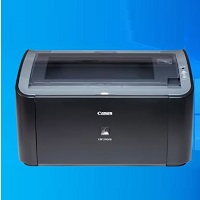
Canon LBP2900B Printer Driver
The Canon L11121e Printer Driver helps your compatible Canon laser printer communicate with a Windows computer for smooth black-and-white document printing. It is useful for printing letters, reports, invoices, school assignments, and everyday office documents.
Rate this app
Canon L11121e Printer Driver 2027 Free Download – Windows 11, 10, 8, and 7 is essential software for connecting the Canon LASER SHOT LBP2900B monochrome laser printer to a Windows computer. It allows the operating system to communicate with the printer and process documents sent from applications such as Microsoft Word, Excel, PDF readers, and web browsers.
The Canon LBP2900B is designed for users who need dependable black-and-white printing for everyday tasks. It is suitable for printing office documents, school assignments, business letters, invoices, forms, and other text-based materials. With the correct driver installed, users can access the printer through Windows and manage supported print settings.
Because this is an older printer model, finding the correct driver is especially important. The available package depends on your operating system and whether Windows is 32-bit or 64-bit. Canon's official support website lists the LBP2900/2900B CAPT Printer Driver R1.50 Ver.3.30 for 64-bit Windows, including Windows 10, Windows 8.1, Windows 8, and Windows 7. A separate 32-bit package is also listed.
Windows 11 users should take additional care because Canon's listed 64-bit package does not officially specify Windows 11 support. Some users may be able to try the older driver, but successful installation is not guaranteed.
This guide explains the driver's purpose, main features, system requirements, installation procedure, benefits, limitations, and solutions to common printer problems.
Software Information
Software Name: Canon LBP2900B Printer Driver
Developer: Canon Inc.
Printer Series: Canon LASER SHOT LBP2900/2900B
Software Category: Printer Drivers
Driver Technology: Canon Advanced Printing Technology (CAPT)
License: Proprietary software
Primary Function: Monochrome document printing
Connection: USB
Available Driver Architectures: 32-bit and 64-bit packages, depending on the operating system
Supported Operating Systems: Varies by driver package
Official Download Source: Canon Support
What Is the Canon LBP2900B Printer Driver?
A printer driver is software that helps your computer understand how to communicate with a particular printer. Without the correct driver, Windows may fail to recognize the device, display a driver error, or be unable to send print jobs correctly.
The Canon LBP2900B uses Canon's CAPT printer technology. This software manages the communication between Windows and the printer, allowing compatible applications to submit documents for printing.
For example, when you select Print in Microsoft Word, Windows sends the document through its printing system. The installed Canon driver processes the job and prepares the appropriate instructions for the printer.
The driver also provides access to supported printing preferences, such as paper size, page orientation, and other available settings. The exact options depend on the installed driver version.
Installing the correct package is particularly important when using an older printer with a newer computer. Although Windows may detect a connected device, automatic detection does not always mean that the correct driver has been installed.
Key Features of the Canon LBP2900B Printer Driver
1. Reliable Printer Communication
The driver's main purpose is to connect Windows with the Canon LBP2900B. Once the appropriate package is installed, compatible applications can send print jobs through the operating system.
2. Black-and-White Laser Printing
The Canon LBP2900B is a monochrome laser printer intended for black-and-white output. It is suitable for documents where readable text and practical everyday printing are more important than color reproduction.
3. Support for Everyday Documents
Users can print letters, reports, school assignments, invoices, business forms, and other common documents from compatible Windows applications.
4. Access to Printer Preferences
The driver makes supported printer settings available through Windows. Depending on the installed package, users may be able to adjust paper size, orientation, number of copies, and available print-quality options.
5. USB Connectivity
The LBP2900B uses a USB connection for direct communication with a computer. A suitable cable and working USB port are necessary for normal operation.
The driver itself does not add Wi-Fi or wireless printing capabilities to the printer.
6. Compatibility with Supported Windows Versions
Canon provides separate packages for different Windows architectures. Selecting the correct package helps reduce installation problems and ensures that the driver matches the intended operating system.
7. Support for Multiple Applications
Once correctly installed, the printer can generally be used with applications that rely on the standard Windows printing system. These may include office suites, PDF readers, text editors, and web browsers.
8. Useful for Home and Office Printing
The combination of a compatible driver and the physical printer makes it possible to handle routine printing tasks at home, in a small office, or in an educational setting.
9. Driver Reinstallation and Troubleshooting
Installing the appropriate driver again can sometimes resolve problems caused by damaged driver files, incorrect configuration, or failed Windows detection.
However, reinstalling software will not fix hardware faults, damaged cables, or empty toner cartridges.
System Requirements
The precise requirements depend on the Canon driver package and the version of Windows installed on your computer.
General Requirements
Operating System: A Windows version supported by the selected driver.
Processor: A processor compatible with the installed Windows version.
RAM: Sufficient memory to run Windows and your printing applications.
Storage: Enough free disk space for the downloaded installer and extracted files.
Connection: A working USB port and compatible USB cable.
Permissions: Administrator access may be necessary for installation.
Hardware: A working Canon LBP2900B printer.
Additional Software: Any components specified in the driver's installation instructions.
These are general requirements rather than official numerical minimum specifications. Consult Canon's documentation for the selected package.
Windows Compatibility
Windows 11: Canon's listed legacy driver does not explicitly include Windows 11. Users may try a compatible legacy-driver installation if appropriate, but functionality is not guaranteed.
Windows 10: Canon lists a 64-bit driver for Windows 10 and a separate 32-bit package for supported systems.
Windows 8 and Windows 8.1: Corresponding driver packages are listed for supported 32-bit and 64-bit versions.
Windows 7: Older driver packages are available for supported system architectures.
Windows 7 and Windows 8 are no longer supported by Microsoft, so using these operating systems may expose your computer to security risks.
How to Download the Canon LBP2900B Printer Driver
To obtain the appropriate software, follow these steps.
Visit the official Canon Support website.
Search for Canon LASER SHOT LBP2900/2900B.
Open the drivers and software section for the printer.
Check the available driver packages and their supported operating systems.
Confirm whether your Windows installation is 32-bit or 64-bit.
Select the appropriate package for your system.
Read the listed compatibility information and installation precautions.
Download the installer from Canon.
Save the file in a location you can easily access, such as the Downloads folder.
Official download page: https://in.canon/en/support/LASER%20SHOT%20LBP2900__%202900B/model
The official listing includes the CAPT Printer Driver R1.50 Ver.3.30 for 64-bit Windows. The listed package is approximately 10.93 MB and was last updated on February 14, 2017. The 32-bit package is listed separately.
The year 2027 in this article title does not mean Canon has released a new driver for that year. Always check the official download page for current availability.
Installation Guide
Method 1: Install the Official Canon Driver
Step 1: Prepare your computer
Save any open documents and make sure you have administrator access. If you have previously installed an incorrect driver, you may need to remove the old printer entry before continuing.
Step 2: Disconnect the USB cable
Canon's instructions for the listed Windows driver specify disconnecting the USB cable before installation. Leave the printer disconnected from the computer until the setup process instructs you to connect it.
Step 3: Locate the downloaded installer
Open the Downloads folder and find the Canon driver file. Check that it is the package you intended to download.
Step 4: Extract the driver files
The downloaded package is a self-extracting executable. Double-click the file and follow the prompts to extract its contents. A new folder should be created.
Step 5: Run Setup.exe
Open the extracted folder and double-click Setup.exe to begin installation.
Step 6: Follow the installation instructions
Read each screen carefully and allow the setup program to install the necessary driver files.
Step 7: Connect the printer
Connect the USB cable when instructed by the installer. Switch on the printer if necessary and allow Windows to detect the device.
Step 8: Complete the installation
Wait for the installation to finish. Restart the computer if the installer requests it.
Step 9: Print a test page
Open Windows printer settings, select the Canon LBP2900B, and use the available printer management options to print a test page.
If the test page prints correctly, the driver and basic printer connection are functioning.
Method 2: Add the Printer Through Windows
If the installer does not automatically configure the printer, you can check Windows' built-in printer setup.
Connect and turn on the printer.
Open Windows Settings.
Select the printer settings section.
Choose the option to add a printer or scanner.
Wait for Windows to search for available devices.
If the Canon printer appears, select it and follow the instructions.
If Windows cannot find a suitable driver, consult Canon's support page.
Windows' automatic setup may not provide the full functionality of the model-specific CAPT driver. Avoid selecting an unrelated printer model just to complete the setup.
Method 3: Windows 11 Compatibility Troubleshooting
If the printer is not recognized on Windows 11, first check Windows Update and Canon's support information. If no officially supported Windows 11 driver is available, you may consider trying Canon's Windows 10 64-bit package on a compatible Intel or AMD computer.
This is a workaround, not an officially guaranteed Windows 11 installation method.
Advanced manual installation may require extracting the driver package and selecting the correct INF file through Windows' printer installation interface. Proceed only if you can verify that the package matches your printer and system.
Pros and Cons
Pros
Enables communication between Windows and the compatible Canon printer.
Suitable for everyday black-and-white document printing.
Provides access to supported printer preferences.
Works with many applications that use the Windows printing system.
Official driver packages are available for several older Windows versions.
Can help resolve problems caused by missing or incorrectly installed drivers.
Useful for home users, students, and small businesses.
Cons
Windows 11 support is not explicitly listed in Canon's legacy driver information.
Older packages may require additional troubleshooting on modern computers.
Separate packages may be necessary for 32-bit and 64-bit Windows.
USB connectivity requires a working cable and port.
The driver cannot add wireless or color-printing capabilities.
Legacy driver software may no longer receive updates.
Incorrect driver selection can cause installation or printing errors.
Common Problems and Solutions
Printer Not Detected
Check that the printer is powered on and the USB cable is connected securely. Try another USB port and verify that the cable works correctly.
Driver Unavailable
Confirm the exact printer model and Windows architecture. Download the corresponding package from Canon and remove any incorrect driver installation if necessary.
Printer Appears Offline
Check the printer's power and USB connection. Open the print queue, clear any stuck documents, and restart the printer and computer.
Installation Fails
Make sure the installer was extracted correctly and run the setup program from the extracted folder. Confirm that your Windows version is compatible with the selected package.
Blank or Poor-Quality Pages
Check the toner cartridge, paper supply, and printer's condition. Driver installation alone cannot correct toner or hardware problems.
Windows 11 Cannot Use the Printer
Check for a supported driver through Canon and Windows Update. If you attempt to use the older Windows 10 driver, understand that compatibility is not guaranteed.
Frequently Asked Questions
1. Is the Canon LBP2900B Printer Driver free?
Yes. Canon generally provides its printer drivers as free downloads through its official support website.
2. Does the Canon LBP2900B work with Windows 11?
Canon's listed legacy driver does not explicitly specify Windows 11 support. Some users may try a compatible older driver, but successful installation cannot be guaranteed.
3. Can I install the driver on Windows 10?
Yes, Canon lists a 64-bit driver package for Windows 10 and provides a separate 32-bit package for supported systems.
4. How do I know whether Windows is 32-bit or 64-bit?
Open Settings, select System, and navigate to About. Look for the system type information.
5. Does the LBP2900B support color printing?
No. The Canon LBP2900B is a monochrome laser printer designed for black-and-white printing.
6. Can I print wirelessly with this driver?
The printer uses a USB connection for direct computer connectivity. The driver cannot add built-in Wi-Fi functionality.
7. Why does my printer show Driver Unavailable?
This can happen when the correct driver is missing, the installed package is incompatible, or Windows cannot configure the device properly.
8. Should I download the driver from third-party websites?
The official Canon website is the preferred source. Avoid installers from unknown websites, especially those bundled with unrelated applications.
9. Do I need to connect the USB cable before installation?
For Canon's listed Windows package, the installation instructions say to disconnect the USB cable before installing and connect it afterward when appropriate.
10. What should I do if the printer still does not work?
Check the cable, power, printer queue, selected driver, and operating-system compatibility. Consult Canon's support resources if the issue continues.
Editor's Review
The Canon LBP2900B Printer Driver remains an important piece of software for users who want to operate this older monochrome laser printer with a compatible Windows computer. It enables document printing, provides access to supported printer settings, and can help Windows communicate correctly with the device.
Its main advantage is straightforward functionality for routine printing. Students, home users, and small offices can use the printer for letters, forms, reports, and other black-and-white documents without needing a complex printing setup.
The biggest limitation is modern operating-system compatibility. Canon's official driver listing includes Windows 10 and earlier supported versions, but does not explicitly list Windows 11. Users should therefore verify the package before installation rather than assuming every Windows version will work.
Final verdict: The Canon LBP2900B Printer Driver is a practical choice for compatible Windows systems. Downloading the correct package from Canon and following the installation instructions are the best starting points for dependable printing.
Previous versions
No previous versions available yet.
Comments
No comments yet. Be the first to comment.
Leave a comment
Your email address will not be published. Required fields are marked *