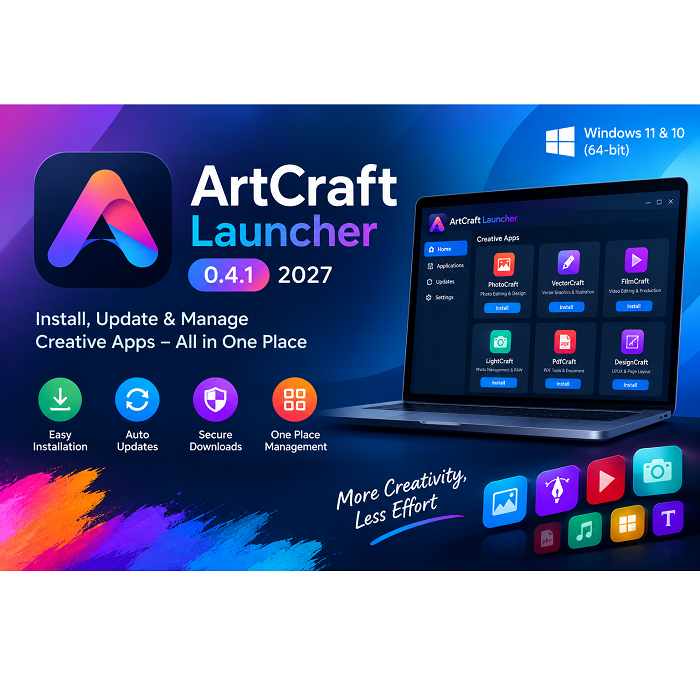
ArtCraft Launcher 0.4.1 2027 for Windows
ArtCraft Launcher 0.4.1 2027 free download is Made for desktop users. This open source launcher aims to streamline application management by consolidating supported applications into a single location. Browse a wide selection of applications, discover updates, and launch installed applications without digging through countless program directories.
Rate this app
Free Download ArtCraft Launcher 0.4.1 for Windows to discover a convenient way to install, update, and manage creative applications from the Craft App Suite. ArtCraft Launcher provides a central interface for accessing supported tools for image editing, vector graphics, video production, photography, PDF management, and other creative tasks.
Overview
ArtCraft Launcher 0.4.1 is a desktop application designed to make it easier to discover, install, update, and open applications in the ArtCraft creative software suite. Instead of searching for individual installers and checking each application's version manually, users can use the launcher as a central place to manage supported creative tools.
The launcher is particularly useful for people who work with digital images, illustrations, photography, videos, PDFs, and other creative projects. Rather than functioning as a full photo editor or video production application itself, ArtCraft Launcher helps users access the separate applications they need for their work.
The ArtCraft ecosystem includes tools such as PhotoCraft, VectorCraft, FilmCraft, LightCraft, and PdfCraft, along with additional applications for design, audio, presentations, spreadsheets, and other creative tasks. Availability and maturity vary between individual applications, so users should check the current project documentation before relying on a particular tool for professional work.
Version 0.4.1 is a version-specific release, not a guarantee that every application in the suite has reached a stable production release. Some tools are still in early development, making ArtCraft an interesting option for people who enjoy exploring emerging open-source creative software.
If you want a convenient way to manage several applications without manually visiting numerous release pages, ArtCraft Launcher is worth exploring. Before downloading, confirm the correct installer for your operating system and processor architecture.
What Is ArtCraft Launcher?
ArtCraft Launcher is a native desktop launcher that brings supported applications from the Craft App Suite together in one interface. It helps users identify available applications, install compatible versions, launch installed tools, and check for updates.
The launcher is different from an all-in-one creative editor. For example, users who want to edit photographs would open PhotoCraft, while those working with vector illustrations could choose VectorCraft. The launcher provides access to these separate programs rather than replacing their editing interfaces.
This approach can simplify software management, especially for users who experiment with multiple creative tools. It can also help reduce confusion when new releases become available.
The project is open source, and the launcher repository identifies MIT and Apache-2.0 licensing options. Always review the license files for the particular version and component you intend to use, especially when redistributing software or incorporating it into a commercial workflow.
Key Features of ArtCraft Launcher 0.4.1
1. Centralized Application Management
One of the launcher's main advantages is that it provides a central location for managing supported Craft applications. Instead of maintaining a collection of unrelated shortcuts and download links, users can browse the available tools through a single interface.
This is helpful when working with several applications for different projects. It can make it easier to identify which tools are installed and which ones may need attention.
2. Convenient Application Installation
ArtCraft Launcher is designed to simplify the process of installing applications from the Craft App Suite. It can select the appropriate package for a supported operating system and processor architecture.
This can save time for beginners who are unfamiliar with manually selecting installers from software release pages. However, users should still review the selected package and ensure that it matches their computer.
3. Update Checking
Keeping creative applications updated can help users receive bug fixes, compatibility improvements, and new features. ArtCraft Launcher checks for application releases and can notify users when updates are available.
The exact updates and improvements depend on the individual application's development schedule. An update to the launcher does not necessarily mean that every application in the suite has received a new release.
4. Download Verification
Software authenticity is important when installing desktop applications. The ArtCraft Launcher project documents SHA-256 checksum verification for downloaded packages.
A checksum is a digital fingerprint that can help confirm whether a downloaded file matches the expected release file. When a checksum is published by a trusted source, comparing it with the downloaded file can help identify accidental corruption or an unexpected file replacement.
Checksum verification does not independently prove that software is free from every security problem, but it is a useful part of a careful installation process.
5. Application Version Information
Managing several programs can become confusing when each has its own release schedule. ArtCraft Launcher helps users keep track of supported applications and their installed versions.
This is particularly useful for people who test developing software and want to know which version they are currently using. Before updating, users should read the application's release notes to understand any compatibility changes or known issues.
6. Quick Application Launching
The launcher allows users to open supported installed applications from a central interface. This reduces the need to search through installation directories whenever a different tool is required.
Depending on the operating system and launcher configuration, the application may also be accessible through a system tray or menu-bar interface.
7. Access to Multiple Creative Tools
The Craft App Suite covers several areas of digital production. Depending on the current release, users may find tools for raster image editing, vector illustration, photography, video editing, PDF management, motion graphics, interface design, publishing, audio, and office-style productivity.
Having multiple tools within one ecosystem can make experimentation easier. Nevertheless, not every application has the same feature set or development status.
8. Native Desktop Experience
The project describes the launcher as a native application built using Rust and the egui interface framework, rather than relying on an Electron-based desktop shell.
For users, this means the launcher is designed as a desktop application rather than simply wrapping a website in a desktop window. Actual memory usage and responsiveness still depend on the system, release, and workload.
9. Support for Multiple Operating Systems
ArtCraft Launcher is distributed for supported desktop platforms, including Windows, macOS, and Linux. Package availability and requirements differ by platform.
Windows users should select the installer that matches their system architecture. A Windows x64 installer is intended for compatible 64-bit Intel or AMD systems, while ARM64 packages are intended for supported Windows-on-Arm computers.
10. Open-Source Development
Open-source development allows users to inspect available source code, follow project progress, and review changes published by the maintainers.
This can be valuable for developers and technically minded users who want to understand how their software works. However, open-source licensing does not automatically guarantee that every feature is complete, secure, or suitable for every professional environment.
Applications Available Through the ArtCraft Ecosystem
The following examples describe the general purposes of applications associated with the Craft App Suite. Their current availability, functionality, and maturity should be checked before installation.
PhotoCraft: Intended for raster image editing, including work with photographs and digital images.
VectorCraft: Focuses on vector illustration and graphics that can be resized without the same loss of quality associated with raster images.
FilmCraft: Designed for video editing and related media-production workflows.
LightCraft: Focuses on photo-library management and RAW image development.
PdfCraft: Provides PDF-related functionality, such as reading, organizing, combining, splitting, and securing documents, according to its published project description.
DesignCraft and FigCraft: Address page-layout, publishing, interface-design, and prototyping workflows.
Other applications in the ecosystem target motion graphics, audio production, word processing, presentations, spreadsheets, and computer-aided design.
Because several of these tools are still under development, they should not automatically be treated as complete replacements for established professional applications.
System Requirements for ArtCraft Launcher 0.4.1
The launcher has more modest storage needs than the full collection of creative applications, but the total space required can grow as you install additional tools.
Minimum preparation checklist
Operating system: Windows 10 or Windows 11 for the supported Windows release.
Architecture: Select a compatible x64, ARM64, or other officially listed package for your system.
Processor: A processor supported by your Windows edition and the selected application.
RAM: Enough memory for Windows and the applications you intend to use. More memory may be needed for large images and video projects.
Storage: The launcher package is relatively small, but individual creative applications and project files require additional space.
Internet connection: Needed to download the launcher, retrieve application packages, and check for updates.
Permissions: Follow the installer instructions. The documented Windows MSI can install for the current user without requiring administrator rights.
Security software: Keep Windows security protections enabled and verify downloads before running them.
These are practical preparation guidelines rather than a complete, officially confirmed minimum specification for every Craft application.
Is ArtCraft Launcher compatible with Windows 7 or Windows 8?
Do not assume compatibility with Windows 7 or Windows 8. The launcher documentation lists Windows 10 and Windows 11 for its supported Windows builds. Older Windows versions may lack the operating system capabilities required by the current release.
For the best chance of compatibility and security, use a supported, updated operating system and check the official release notes before installing.
Choose the Correct Windows Installer
Select the Windows installer that matches your computer. Most compatible Intel and AMD desktop computers use the x64 version. Windows-on-Arm devices may require an ARM64 build if one is available for the release.
Avoid downloading a macOS or Linux package for Windows.
Verify the Download
Before opening the installer, check the file against the SHA-256 checksum published with the corresponding official release.
On Windows, you can calculate a checksum using PowerShell:
Get-FileHash ".\artcraft-launcher-0.4.1-windows-x64.msi" -Algorithm SHA256Run this command from the folder containing the installer, or provide its full file path. Compare the resulting hash with the official checksum for the exact same release file.
If the values do not match, do not run the installer. Download the file again from the official source and repeat the verification.
Step 4: Run the Installer
Locate the downloaded MSI file and open it. Follow the instructions provided by Windows Installer.
Review the installation details and approve any permission request only when you trust the source and understand the requested action.
Step 5: Complete the Installation
Allow the installation process to finish. If Windows reports an error, record the message and check the official documentation before attempting another installation.
Avoid disabling antivirus protection or bypassing security warnings simply to complete the process.
Step 6: Open ArtCraft Launcher
Launch ArtCraft Launcher from the Start menu or the shortcut created during installation.
On the first run, give the application time to load its application catalog and retrieve any information required for its normal operation.
Step 7: Select a Creative Application
Browse the available applications and choose the one that matches your work. For example, select PhotoCraft for raster image editing or VectorCraft for vector illustration.
Check the application's development status and system requirements before installing it.
Step 8: Install and Open Your Selected Tool
Use the launcher's installation controls to obtain the selected application. Wait for the download and installation process to complete, then open the application.
Large creative programs may require additional storage and memory beyond what the launcher itself uses.
Step 9: Check for Updates
Return to the launcher periodically to check for application updates. Read release notes before installing major updates, particularly if you are using the software for an important project.
Keep copies of important project files and avoid updating in the middle of a critical deadline unless the update is necessary.
Pros and Cons of ArtCraft Launcher 0.4.1
Pros
Centralized management: Provides one place to discover and manage supported Craft applications.
Simpler installation: Helps users obtain compatible application packages without searching through multiple release pages.
Update notifications: Helps users identify when newer releases are available.
Checksum verification: Adds a useful file-integrity check to the download process.
Multiple creative categories: Provides access to tools covering different types of digital work.
Open-source project: Makes source code available for inspection under the applicable licenses.
Native desktop interface: Offers a dedicated desktop experience rather than requiring users to manage everything through a browser.
Cross-platform availability: Provides supported builds for several desktop operating systems.
Convenient launching: Makes it easier to open installed applications from one location.
Cons
Early development: Some applications may have incomplete features or bugs.
Variable maturity: Different applications in the suite may not be equally stable.
Internet dependency: Downloading applications and checking for updates requires network access.
Additional storage needs: Installing several creative applications can require significant disk space.
Learning curve: Beginners may need time to understand which application suits each task.
Compatibility limitations: The current Windows release should not be assumed to support Windows 7 or Windows 8.
Professional limitations: Some tools may lack advanced features or workflow compatibility found in established commercial applications.
Potential update issues: A new application version may introduce bugs or changes that affect existing projects.
Common Problems and Solutions
ArtCraft Launcher Will Not Open
Confirm that your Windows version and processor architecture are supported. Check whether installation completed successfully and review any error message. If necessary, download the verified installer again.
The Application Download Fails
Check your internet connection and available storage. Try again later if the release server is temporarily unavailable, and make sure your firewall or network settings are not blocking legitimate downloads.
The Checksum Does Not Match
Do not run the file. Delete the suspicious or incomplete download and obtain a fresh copy from the official project release page. Verify the new file against the matching published checksum.
A Creative Application Runs Slowly
Close unnecessary programs, check available memory and storage, and confirm that your computer meets the application's requirements. Large photographs, complex illustrations, and high-resolution video projects can require considerably more resources than the launcher itself.
Frequently Asked Questions
1. What is ArtCraft Launcher 0.4.1?
It is a desktop launcher for installing, updating, and opening applications in the Craft App Suite.
2. Is ArtCraft Launcher free?
The project is presented as open-source software. Review the official repository and applicable component licenses for the exact terms.
3. Does ArtCraft Launcher work on Windows 11?
The project lists Windows 10 and Windows 11 builds. Select the installer compatible with your processor architecture.
4. Can I install it on Windows 7?
Windows 7 is not listed among the supported Windows versions in the launcher documentation. Use a supported operating system instead.
5. Does the launcher edit photos or videos?
The launcher manages and opens separate creative applications. Photo editing and video editing are performed in the corresponding applications, not in the launcher itself.
6. Does ArtCraft Launcher automatically update applications?
It checks for available application releases and helps users manage updates. Review the current documentation for the exact update behavior of version 0.4.1.
7. Is ArtCraft Launcher suitable for beginners?
Its centralized interface may make application management easier for beginners. However, learning the individual creative applications may still require practice.
8. Can I use ArtCraft for professional projects?
That depends on the specific application, its maturity, and your workflow requirements. Test the tools carefully before relying on them for client work or critical deadlines.
9. How can I verify the installer?
Compare the file's SHA-256 checksum with the value published for the same file in the official release. A mismatch means you should not run the installer.
10. Where can I download ArtCraft Launcher 0.4.1?
Start at the official applications page, https://getartcraft.com/apps, or the official launcher repository, https://github.com/storytold/craft-launcher. Confirm the version and download details before installation.
Editor Review
ArtCraft Launcher 0.4.1 is a practical option for users who want to explore a growing collection of open-source creative applications without managing every installation separately. Its centralized application catalog, update-checking capabilities, and checksum verification make it useful as a software-management tool.
Its greatest strength is convenience: users can access different creative tools through one launcher while keeping track of available releases. The project's open-source approach may also appeal to developers, designers, photographers, and hobbyists who enjoy exploring new software.
However, the experience depends on the individual applications. Some tools are still in early development, and users who need advanced professional workflows should verify feature completeness and compatibility before switching from their existing software.
Overall, ArtCraft Launcher is worth considering for users who want to experiment with emerging creative tools and manage them from one desktop interface. Download it from the official project, verify the installer, and test the applications with noncritical projects before relying on them for important work.
Previous versions
No previous versions available yet.
Comments
No comments yet. Be the first to comment.
Leave a comment
Your email address will not be published. Required fields are marked *